
The Office of Digital Learning’s DL Courses Application streamlines the behind-the-scenes process for entering, auditing, and reporting semesterly online course data. It also gives your department a central location to access DL fee information for multiple semesters.
Regularly review all course details in the application. Doing so helps ensure that information and fees are accurately recorded in time for students to register.
Before You Start
Be sure we have your latest contact information by completing an Access Request: DL Courses Application form. We’ll need these details to register you in the application as either a Course Builder or Budget Personnel (see descriptions below). If you fulfill both roles for your department, submit an access request for each. If you are responsible for courses in more than one program, select all applicable programs. Please allow 1-2 business days for your request to be processed.
Expand/Collapse Role Descriptions
Build your online course sections in Student Central before including them in the DL Courses Application.
Course Builders are responsible for creating DL courses in Student Central in time for student registration and reporting DL courses created to our DL Courses App. If you request this role, you’ll receive notifications each semester inviting you to submit a distance learning course listing for your program(s). You’ll also receive correction requests if potential course build errors or reporting inconsistencies are detected. Lastly, you’ll be asked to verify that course details included in your department’s Budget Breakdown(s) (DL fee reports provided to Budget Personnel) are correct and complete.
Note: Unless you also fulfill the Budget Personnel role for your department, you will not be expected to verify any financial data pertaining to your courses. Simply confirm that the courses included in the report align with those expected to be offered.
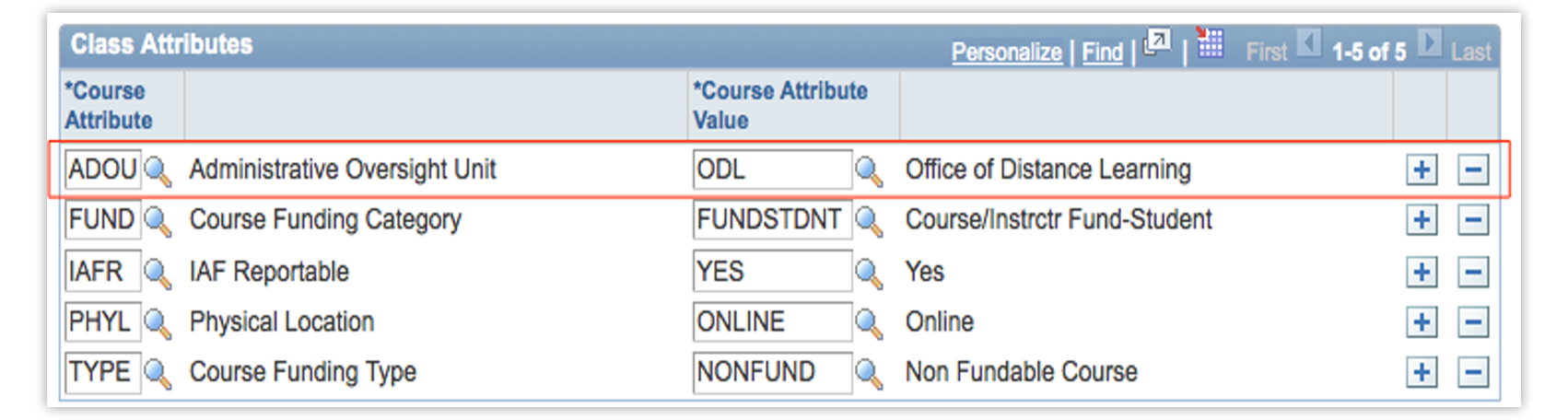
If you are a Course Builder, when building your online course sections in Student Central, be sure to add the course attribute Administrative Oversight Unit and the course attribute value ODL to the Class Attributes section.
ODL recognizes that your department may have additional staff that are not responsible for course building or reporting but may need access to the latest DL fee reports for your department. To accommodate these individuals, we’ve introduced a Budget Personnel role to the DL Courses Application. Like Course Builders, Budget Personnel can view course listings and access Budget Breakdowns. However, they will not be regularly contacted regarding course build/reporting needs and cannot alter any records in the application.
While the DL Courses Application will show a basic DL Fee indicator alongside reported courses, the detailed Budget Breakdown exports are not available immediately. Look for an announcement from our team about the report’s availability as the semester approaches.
If you'd like to jump to a specific section of the page, select from the list below.
Step 1: Launch the DL Courses Application | Step 2: Select a Program
Step 3: Select a Term | Step 4: Click Go! | Step 5: Add Course Information
Step 6: Enter and Submit Course Information | Step 7: Review Course Listings
Step 8: Edit or Delete Course Listings | Step 9: Export the Budget Breakdown
Step 1: Launch the DL Courses Application
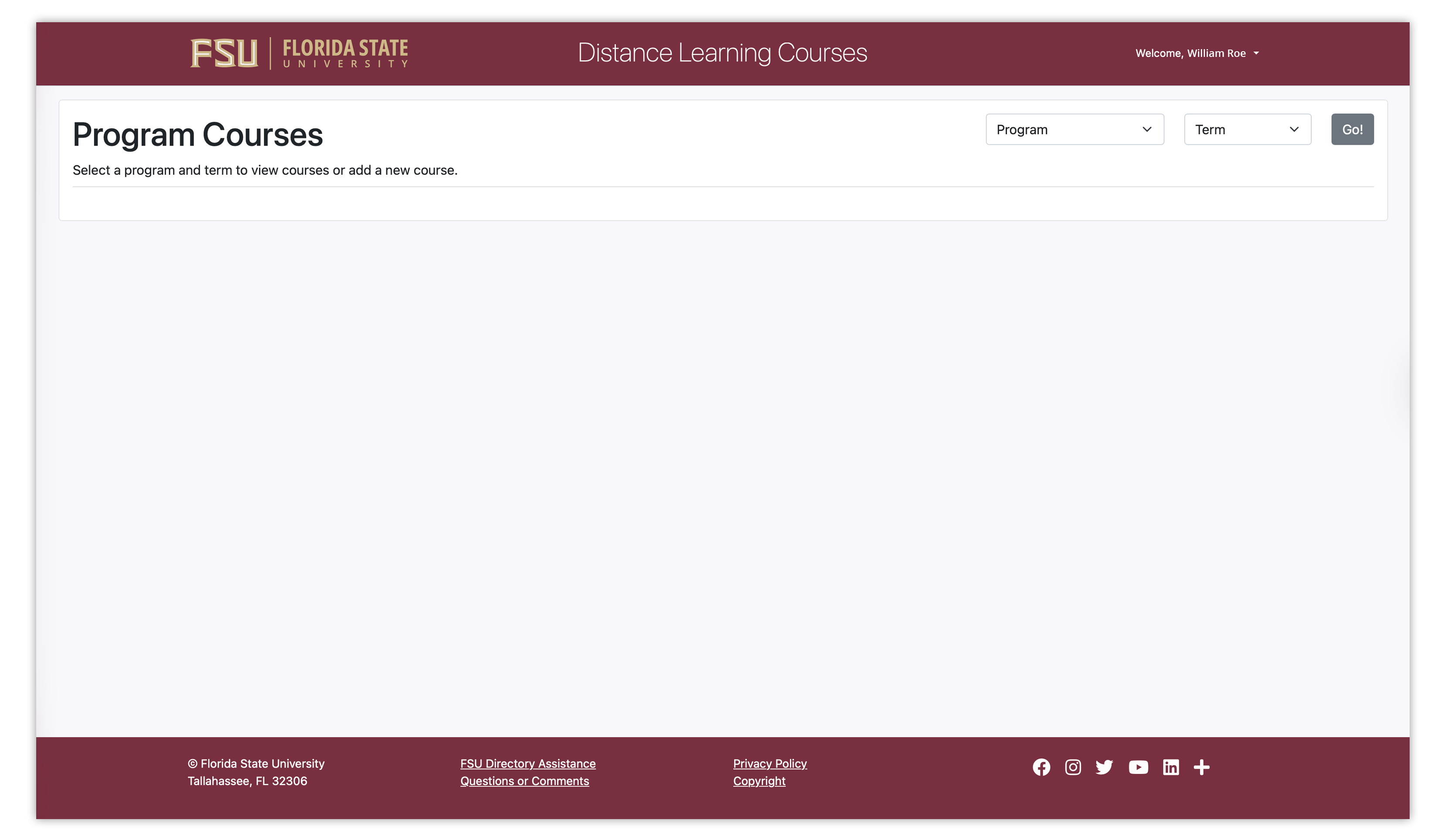
Launch the DL Courses Application and enter your FSU credentials to log in. You will then see a Program Courses landing page with dropdown menus to select a program and term.
Getting a permission error?
You must be a registered user to log into the DL Courses Application and access programs. Complete an Access Request: DL Courses Application webform to be added as a user.
Step 2: Select a Program
In the Program dropdown menu, select the program that you’d like to access.

Can’t find the program you want?
If the correct program does not appear in the list, your name may not yet be associated with that program. Submit an Access Request: DL Courses Application webform, being sure to select all programs you’re affiliated with. Please allow 1-2 business days for your access request to process.
Step 3: Select a Term
In the Term dropdown menu, select the term.

Can’t find the term you want?
If the term you want does not appear in the dropdown menu, check back with us in a few weeks. The reporting window for that term may not yet be open in our system. Look for an email notifying you when to access the app for that term.
Step 4: Click Go!
Once you have selected your program and term, click the Go! button.
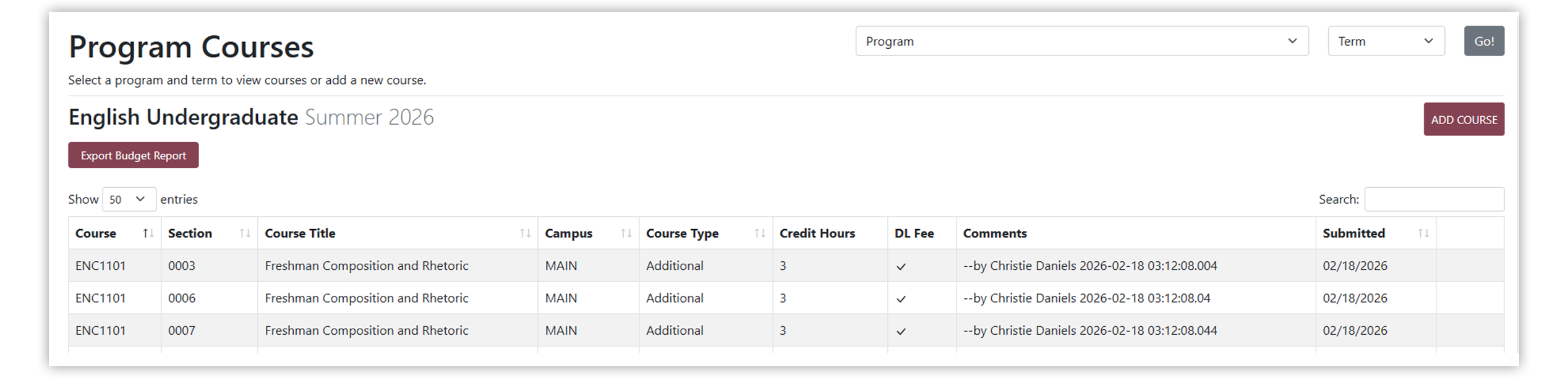
The Program Courses page will appear, displaying the name of the selected program and term and a table of courses and sections if they’ve been submitted.
If you are Budget Personnel and will not be responsible for the submission of course data, please skip to Step 9.
Step 5: Add Course Information
To add a course section, click the Add Course button in the upper-right corner of the page.
No courses to report?
If no DL courses are anticipated, check the box next to No online sections to report for [Term], then click Submit.
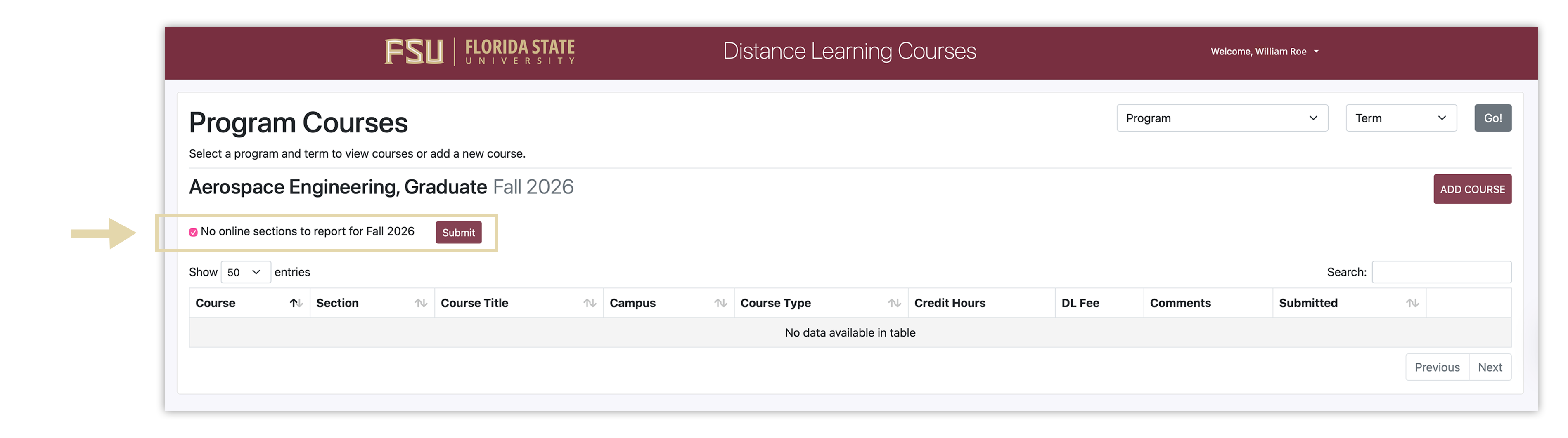
The course listings table and Add Course button will disappear. If you need to undo this action, uncheck the box next to No online sections to report for [Term] and click Submit. The course listings table and Add Course button will reappear, and you can proceed with adding course sections.
Step 6: Enter and Submit Course Information
In the New Course pop-up modal, enter information for each field.
- If there are multiple sections with the same campus, course type, and credit hours, you can enter course details for these sections all at once. In the Sections field, use commas to separate each section number (e.g., 1, 2, 3).
- Enter course information for all online sections, including those that will not receive a DL fee, except International Programs sections.
- Use the Comments field to add any additional information about the course or its DL fee. Comments are seen only by ODL staff and other members of your department with access to the app. Do not include course descriptions or notes intended for students.
Note: If you add multiple sections at once, the comments will be attached to each section.
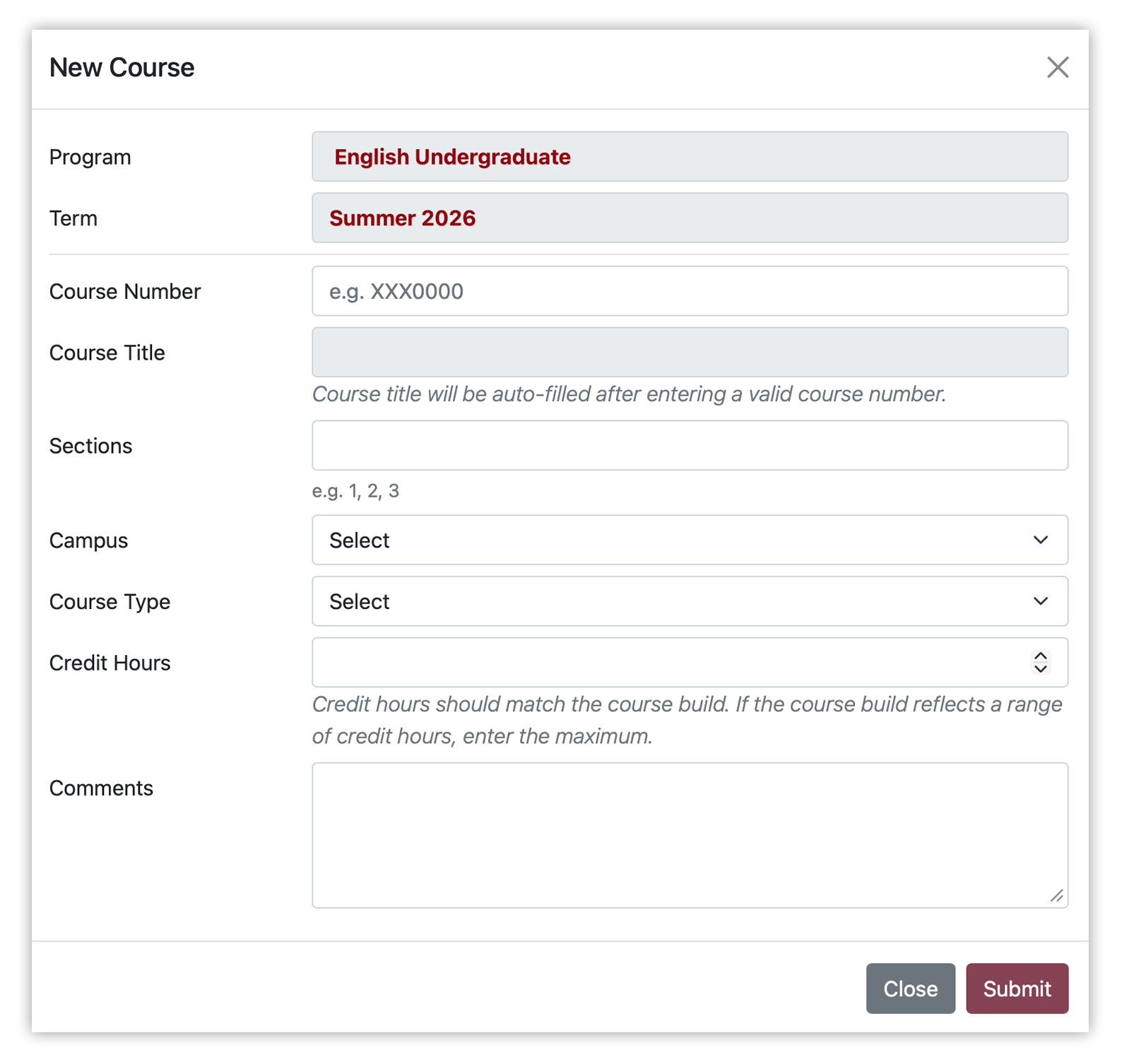
Click Submit when you are finished entering information in each field. Repeat the steps above to add additional courses and sections.
Step 7: Review Course Listings
On the Program Courses page, review your DL course listing(s). Make sure all course sections have been added in the table and that campus location and credit hours are accurately reflected.
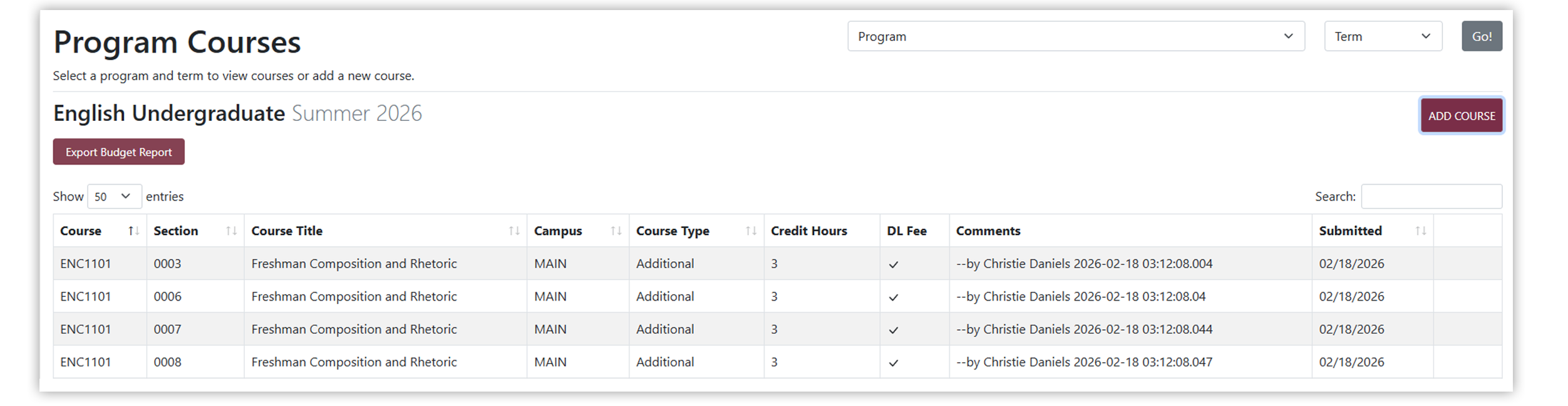
Once you’ve submitted a DL course listing, we will review the information. If we spot a discrepancy between a listing, a section’s course build, or the course’s record in the FSU curriculum portal (CourseDog), we’ll reach out to request corrections.
Step 8: Edit or Delete Course Listings
Need to edit or delete a course listing?
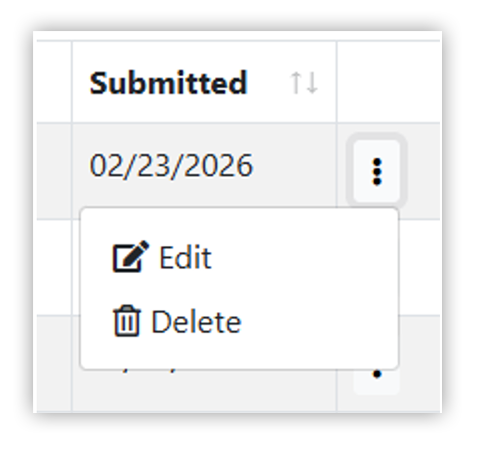
- On the Program Courses page, find the course section you would like to edit.
- Click the ellipsis menu (three vertical dots) in the far-right column of the course section you want to edit.
- Select Edit from the ellipsis dropdown menu. (If you want to delete the listing, select Delete.)
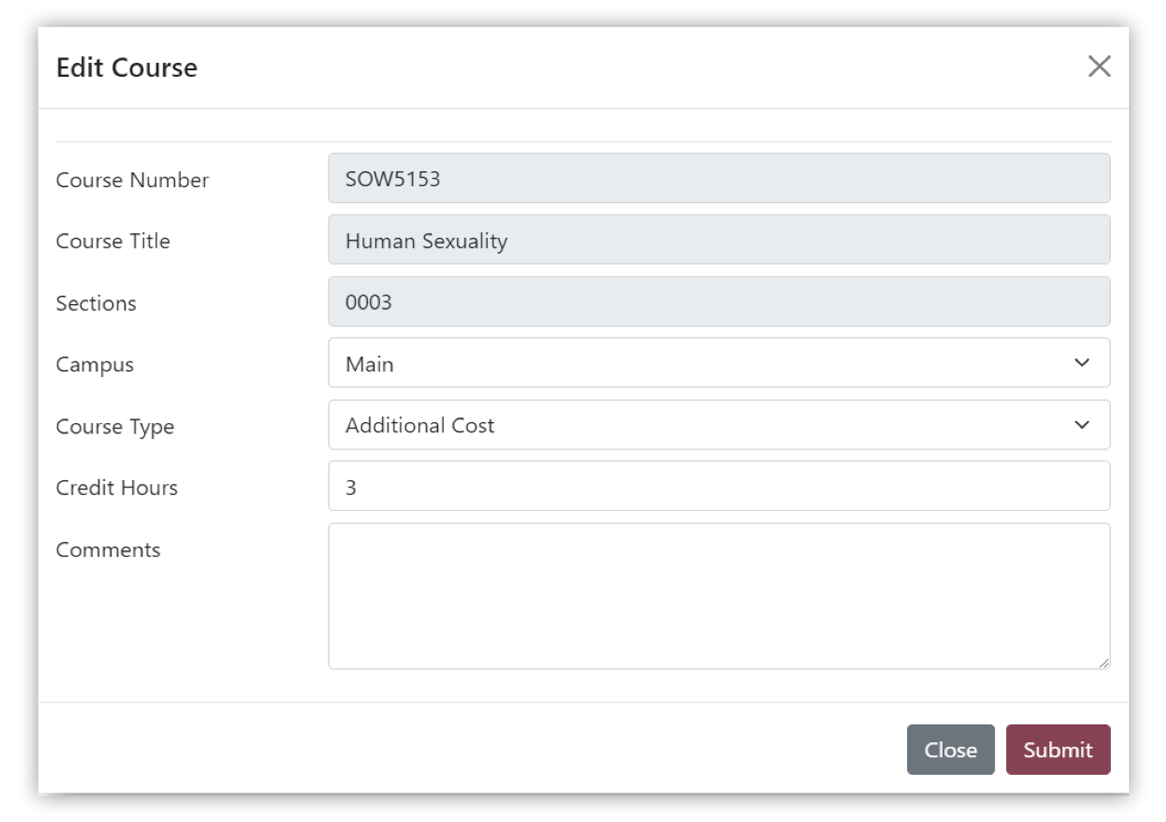
- In the Edit Course pop-up modal, make any needed corrections to the campus, course type, credit hours, and comments, then click Submit.
Please note that other fields cannot be edited. To correct these, delete the course and resubmit.
Don’t see an option to edit or delete?
If fees or fee notes have already been added for a course section, you may not be able to edit or delete it. Send us an email at inquiries@campus.fsu.edu. We’ll update the listing for you and correct any affected students’ accounts.
Getting an error when adding a course?
If you receive the error message below, email inquiries@campus.fsu.edu and include your course, section, program name, and department/college. We’ll take a closer look and get back in touch.

Step 9: Export the Budget Breakdown
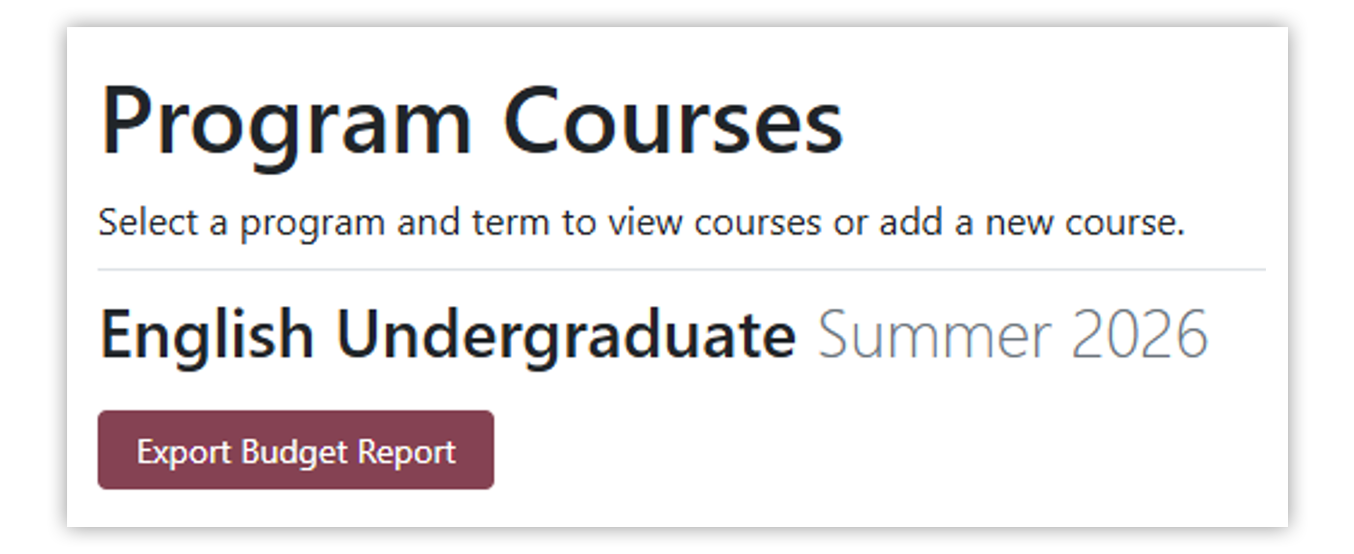
Both Course Builders and Budget Personnel will be able to view details related to course fees and export the Budget Breakdown report for a term. You can view basic fee information in the table in-app or select “Export Budget Report” to download a more detailed report in Excel.
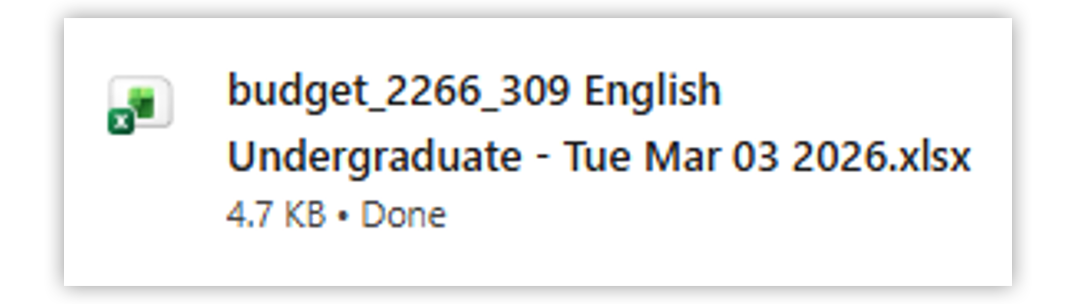
The downloaded file title will reflect the term, program, and the date the file is exported.
Within the file, you will find a breakdown of fees for the upcoming semester by course section.
Note that the file will include all programs affiliated with your budget. Course Builders, if your department includes multiple programs in a single budget, you may see sections that you did not report. Please confirm with your colleagues before removing or altering any sections.
For each section, the credit hours, budget, course type, per credit hour (PCH) DL fee, and total DL fee are listed. If a course has variable credit hours, note that the Total DL Fee column will read “Depends on credit hours”. If a course’s fee eligibility is still being determined, “TBD” will appear in the PCH DL Fee and Total DL Fee columns. If a course has been deemed ineligible for a DL fee, “No” will appear in the PCH DL Fee and Total DL Fee columns.
Inform us as soon as possible if you believe any details within your report are incorrect or if courses have been omitted that should receive a fee.
Look for an email from our team notifying you when a term’s Budget Breakdown becomes available. We’ll also send a reminder prior to drop/add. Be sure to check back then to confirm everything is correct for the upcoming semester. Fee eligibility is subject to change and our ability to alter DL fees is limited once financial aid has been disbursed for the semester.
Need Help?
If you encounter issues while working within the DL Courses Application or have questions, email inquiries@campus.fsu.edu or call 850-644-4635.
We are happy to assist you!